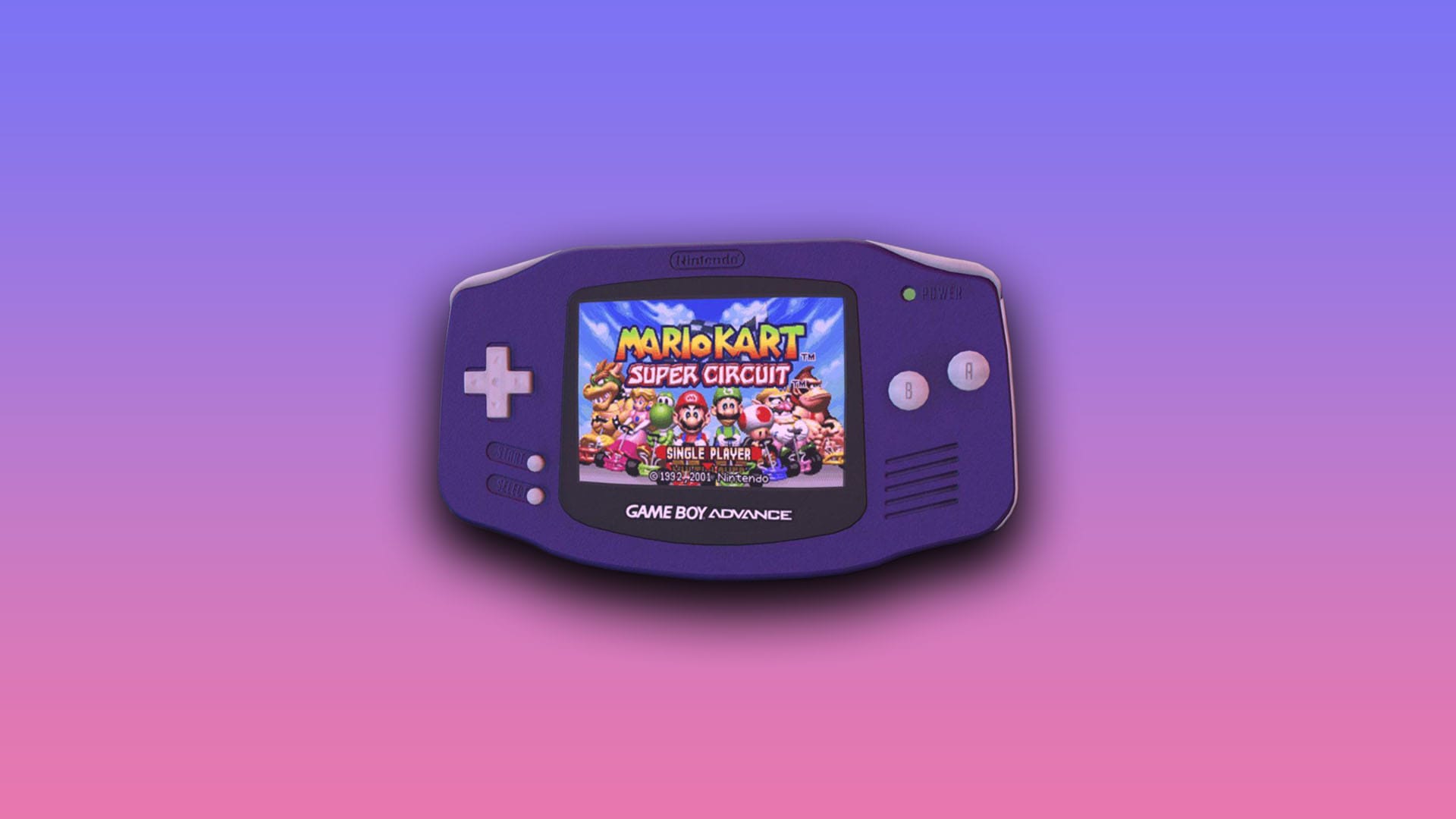
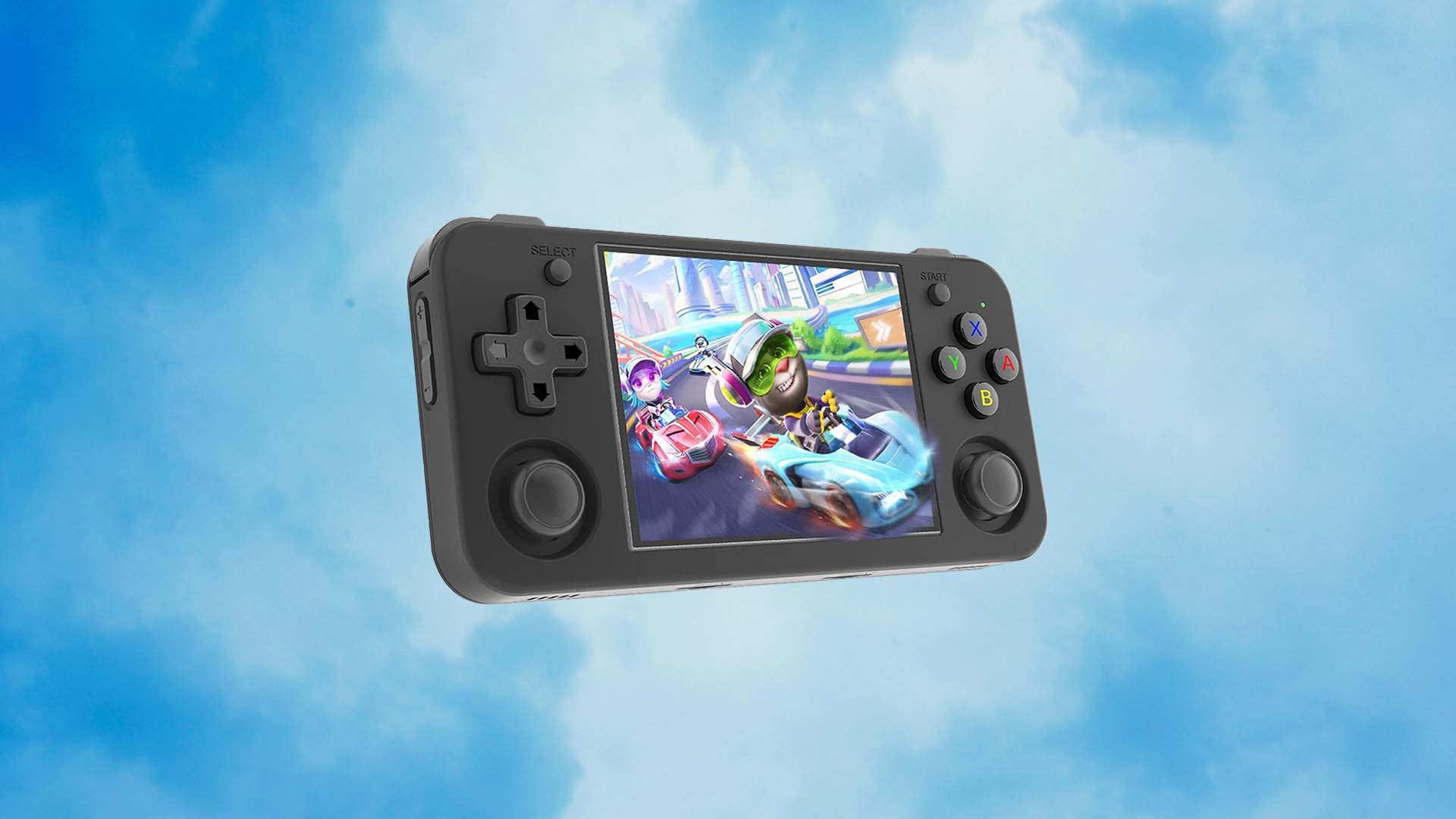
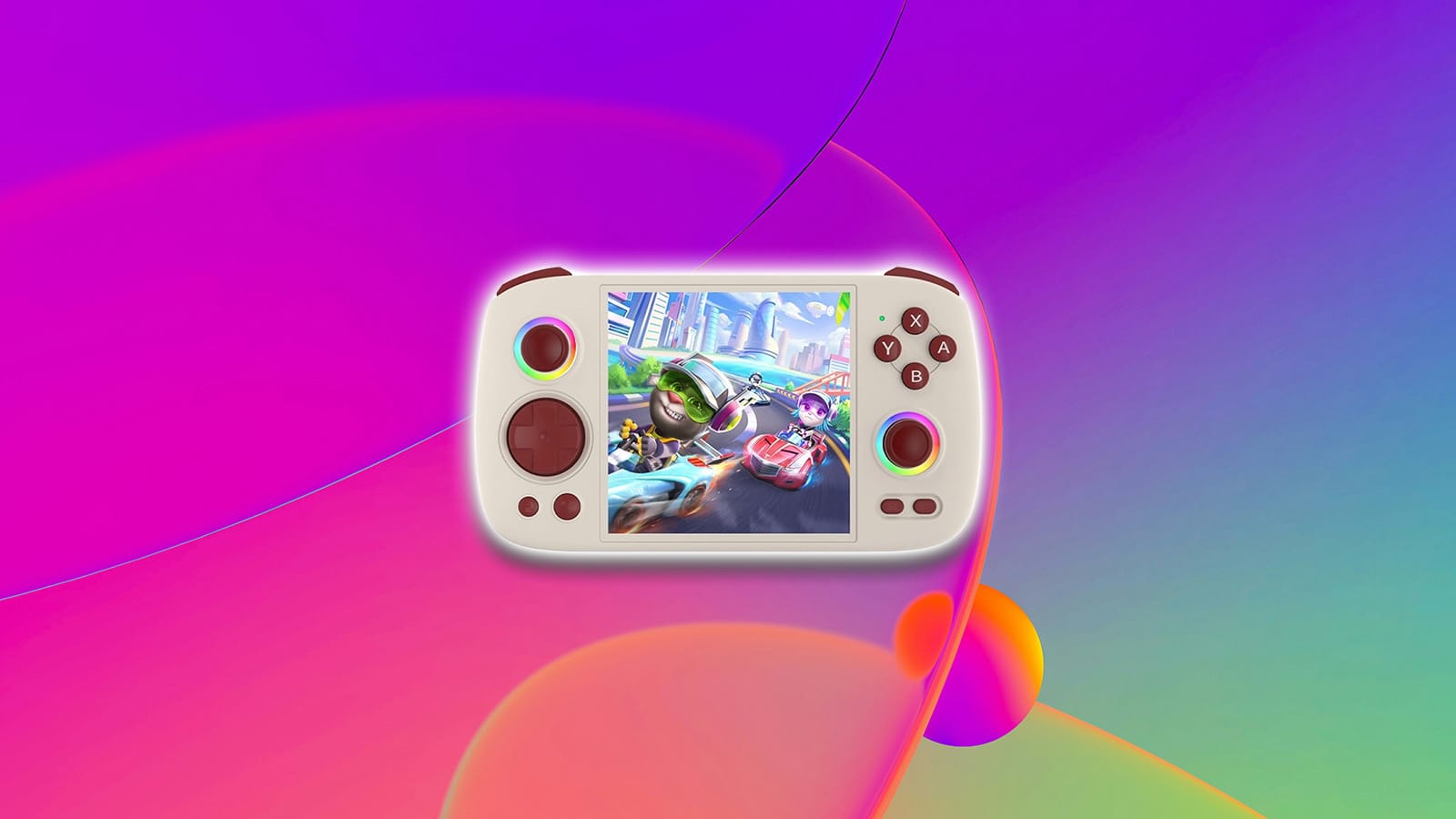
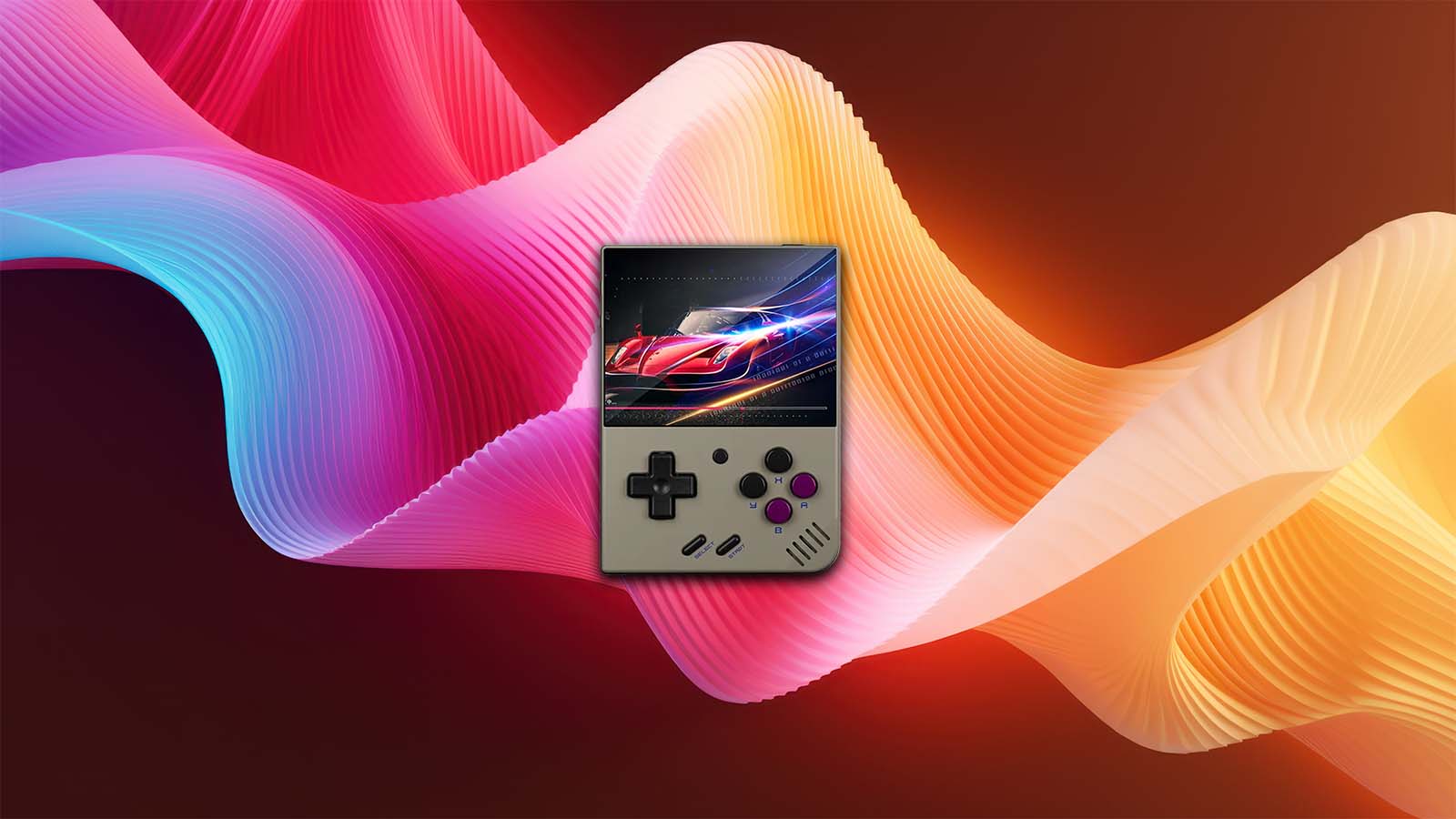
Remember that feeling of cracking open your old Game Boy Advance SP for the first time? That satisfying click, that glossy screen reflecting pure nostalgia? The Anbernic RG35XX SP brings that magic roaring back—but this time, it’s sharper, faster, and way more versatile. This little clamshell beauty feels like a love letter to the golden age of handhelds, built for those of us who still crave pixel-perfect adventures and chiptune soundtracks on the go.
Under the hood, it’s got modern muscle—a crisp IPS display, solid battery life, and enough horsepower to handle everything from NES to PlayStation with ease. For newcomers, it’s the ideal gateway into the emulation world; for veterans, it’s a comforting reminder of why we fell in love with handheld gaming in the first place. So let’s pop it open, power it on, and get ready to game like it’s 2003 all over again.
One for OS, one for games; expandable up to 512 GB+
Operating System
Linux-based (Stock)
Supports custom firmware such as muOS and GarlicOS
Audio
Stereo speakers + 3.5mm headphone jack
Clear sound with classic headphone support
Connectivity
WiFi & Bluetooth 4.2
Wireless file transfer and controller pairing
Video Output
Mini-HDMI
Connect to TV or monitor for big-screen play
Battery
3300 mAh lithium-ion
Approx. 6–8 hours of gameplay per charge
Charging Port
USB-C
Fast charging and modern convenience
Dimensions
~8.9 × 8.4 × 2.6 cm
Compact, travel-ready clamshell design
Weight
Approx. 200g
Lightweight, comfortable for extended play
Colors / Shells
Silver, Black, Transparent, Purple
Retro-inspired finishes with SP-style hinge
Let’s start with the basics—the stuff that makes this pocket-sized machine tick. The Anbernic RG35XX SP sports a crisp 3.5-inch IPS display with a native 640×480 resolution. In plain English? Every pixel of your favorite retro game bursts to life in clean, vivid detail. The colors are rich, the contrast is balanced, and the brightness holds up whether you’re curled up on the couch or sneaking in a quick game under the covers. It’s a screen that doesn’t just show you nostalgia—it revives it.
Under the shell hums an Allwinner H700 processor paired with 1GB of RAM—humble by modern standards, but more than enough for what this little clamshell is built to do. Storage-wise, the dual microSD slots are a blessing, letting you keep one card for your OS and another for your game library—a simple but genius setup for quick swapping and organized chaos.
Connectivity is equally well thought out. There’s a mini-HDMI port if you fancy blowing your pixel art up on the big screen, plus a traditional headphone jack for those late-night sessions when the world around you fades away. WiFi and Bluetooth round things off, opening the door to wireless file transfers and even controller pairing—small touches that make a big difference for beginners dipping into the retro handheld scene.
In practical terms, these specs mean one thing: you don’t have to overthink it. The RG35XX SP is fast enough, bright enough, and flexible enough to make emulation easy, not intimidating. It’s a machine designed to just work—a rare and wonderful thing in a world of endless settings, firmware fiddling, and tech jargon. Plug in, power up, and play.
Comparison to Other Handhelds
When you start comparing the RG35XX SP to its siblings, you quickly realize how deliberate its design choices are. The SP isn’t the powerhouse of the family—that title leans toward the RG35XX Plus with its slightly beefier specs and larger battery—but it doesn’t need to be. The SP exists for a different type of player: someone who values charm, portability, and that iconic flip-top nostalgia over raw horsepower. It’s smaller, more pocketable, and that clamshell hinge does more than protect the screen—it transforms the entire experience into something tactile, personal, and joyfully old-school.
Line it up next to Anbernic’s other offerings—the RG503, RG405M, or even the beefier RG556—and the differences become philosophical. Those devices lean into modern convenience and power, flirting with Dreamcast and PSP emulation territory. The SP, on the other hand, keeps things grounded. It’s built for the classics. The kind of gamer who’d rather revisit Metroid Zero Mission or Astro Boy Omega Factor than push polygon-heavy ports to their limit.
Against other budget handhelds, like the Miyoo Mini Plus or Powkiddy RGB20SX, the RG35XX SP finds its balance point. The Miyoo feels sleeker, but its vertical layout isn’t everyone’s cup of tea. The Powkiddy might be cheaper, but it lacks the refinement and polish Anbernic has practically trademarked by now. The SP sits right in the sweet spot: affordable, reliable, and packed with personality.
Still, your choice should mirror your gaming habits. If you’re the tinkering type, chasing performance and customization, you’ll find more flexibility elsewhere. But if you just want to play—to relive pixel-perfect adventures without endless menus or firmware drama—the RG35XX SP delivers exactly that. It’s not trying to be everything. It’s trying to remind you why gaming on a handheld used to feel so special.
Emulation Performance
The RG35XX SP might look like a nostalgic throwback, but under its retro shell beats a surprisingly capable little heart. For most players, its sweet spot lies in the golden age of 2D and early 3D gaming.
Systems It Runs Like a Dream
NES, SNES, Genesis/Mega Drive, Neo Geo: Flawless. These run silky smooth without any hiccups.
Game Boy, GBC, GBA: Perfect performance. The screen’s 4:3 aspect ratio gives Game Boy games that chef’s kiss level of presentation.
PlayStation 1: This is where the RG35XX H really shines. Most PS1 titles run full speed, complete with smooth 3D rendering and no audio stutter.
Nintendo 64: Some lighter games are playable with frameskip and tinkering, but it’s hit-or-miss.
Dreamcast, PSP: Technically possible, but not ideal. Don’t come in expecting flawless performance here.
Systems like the NES, SNES, Genesis, and Game Boy line run flawlessly, as if they were built for the hardware. Game Boy Advance titles, in particular, feel right at home on the 3.5-inch display—sharp, colorful, and perfectly scaled for handheld play. Step it up to the PlayStation 1, and the device doesn’t even flinch. Classics like Final Fantasy IX, and Crash Bandicoot glide along with buttery smoothness, audio intact, and input lag virtually nonexistent.
Push a little harder, and you’ll find it has a few surprises left. Light N64 and Dreamcast titles—think Mario Kart 64 or Crazy Taxi—can run decently with the right settings, though not every game hits full speed. That’s where its limitations start to show. The lack of analog sticks makes certain 3D games awkward to control, and more demanding systems like the PSP will occasionally chug, especially with action-heavy titles. It’s not a failure—it’s physics. You’re asking a retro-focused handheld to lift weights it was never designed for.
For beginners, that’s actually a blessing in disguise. It helps set realistic expectations from the start. The RG35XX SP isn’t about pushing boundaries—it’s about perfecting nostalgia. It’s the machine you reach for when you want to replay Super Metroid on the bus, and that’s okay. Because what it does emulate, it does beautifully.
Why You Should Replace the Stock SD Cards ASAP
Let’s get one thing straight: the RG35XX SP is a beast for the price—but those stock SD cards it ships with? Hot garbage. They’re the equivalent of fast food napkins trying to pass as fine china. Yes, they technically get the job done, but not for long, and not well.
What’s Wrong With the Stock SD Cards?
Unbranded and slow: These cards are often low-grade, with inconsistent read/write speeds that can cause long boot times, laggy menus, and random crashes during gameplay.
Risk of data corruption: Save files and game data can vanish into the digital void if the card fails. That 100% Symphony of the Night run? Gone.
Poor file organization: Preloaded games are usually a jumbled mess, with broken ROMs, mismatched box art, and weird naming conventions that make navigating the library a headache.
The Upgrade Path: What You Should Do Instead
Get two quality SD cards: One for the OS (16–32GB is plenty) and one for games (64GB–256GB depending on your appetite).
Go for known brands: Samsung, SanDisk, Kingston—any reputable brand will offer better speed, longevity, and reliability.
Format and start fresh: Download GarlicOS or another custom firmware, flash it clean, and load up your own well-curated ROMs. Bonus: you’ll avoid any legal grey areas by not using sketchy preloaded content.
How to Add Games to Your RG35XX SP
So you’ve got your shiny new RG35XX SP, you’ve swapped out the janky stock SD cards (good call), and now you’re ready to load it up with your favorite retro classics. Whether you’re chasing Chrono Trigger or craving some Metal Slug, here’s how to get games onto your device without breaking a sweat—or the law.
What You’ll Need
A quality microSD card (ideally already set up with GarlicOS or your preferred custom firmware)
A computer (Windows, macOS, or Linux—it’s all good)
Your legally obtained game ROMs (no judgment, just keep it clean)
Step-by-Step Guide
Turn off the RG35XX SP completely. Remove the second SD card—the one meant for games (usually in slot TF2).
Insert Into Your Computer. Use an SD card adapter or built-in reader. The card should mount and appear as a drive on your computer.
Navigate to the ‘ROMS’ Folder. Example path: /ROMS/SNES/
Copy your game files (usually .nes, .sfc, .gba, .bin, .cue, etc.) into the correct folders. Keep BIOS files in the right place too, especially for PS1 and arcade emulation—some systems won’t run without them.
Pro tip: For PS1 games, always include the .cue file with your .bin—they work as a pair.
Once everything’s copied over, eject the SD card safely, pop it back into the RG35XX SP, and boot it up.
How to Connect to WiFi on the RG35XX SP
One of the sleekest upgrades to the RG35XX SP over its predecessors? Built-in WiFi. Finally. That means wireless file transfers, scraping box art, syncing save states, and maybe even some light retro multiplayer action—all without pulling out a single cable.
Here’s how to get your RG35XX SP online and connected to WiFi in just a few taps.
Boot Up Your RG35XX SP. Make sure you’re on a firmware version that supports WiFi. GarlicOS 1.4+ is a safe bet.
Press the MENU button from the home screen to open the main settings.
Scroll to “Network Settings” or “WiFi”, then toggle WiFi from OFF to ON. The device will now scan for available networks.
Choose your home WiFi network (2.4GHz only—this device doesn’t do 5GHz).
Use the on-screen keyboard to type your password. Yes, it’s a little clunky—just take it slow. Hit “OK” when you’re done.
Wait for connection confirmation. Once connected, you’ll see a status indicator or message confirming you’re online. Some firmware may display your IP address too.
Updating the Stock Firmware
So you’ve got your hands on the RG35XX SP and you’re wondering: “Is there a better version of this firmware?” The answer is a resounding yes—but getting there takes a few extra steps.
If you want a smoother UI, improved emulator support, bug fixes, or even just the satisfaction of having the latest and greatest, you’ll need to manually update your RG35XX SP firmware.
Let’s break it down.
Why Aren’t OTA Updates Supported?

Unlike your phone or Steam Deck, the RG35XX SP doesn’t support over-the-air (OTA) updates on official firmware. This isn’t Android—it’s a custom Linux-based OS with no background update service. That means you’ll need to flash firmware manually, just like in the early Android ROM days or PSP custom firmware scene.

But don’t worry—it's not hard, and we’ve got your back.
What You’ll Need
A microSD card (the “OS” card—usually the first SD slot)
⚠️ Warning: This process will wipe your system SD card. Your games and saves are safe if they’re stored on a separate card (which is the norm). But still—back it all up just in case.
How to Manually Update RG35XX SP Firmware
Back up your current SD card. Copy everything to a folder on your PC, especially any save files or BIOS files you’ve added.
Use Balena Etcher or Raspberry Pi Imager to flash the .img file you downloaded onto the card.
Safely eject the SD card, then insert it into your RG35XX SP.
Boot up the device. It should auto-expand and load into the new OS. That’s it!
Bonus Tip: Keep a “Clean Image” Saved

After flashing and setting up your favorite tweaks, make a backup image of your SD card. That way, if things ever go sideways, you can restore your perfect setup in minutes.
Adding Box Art with Skraper
You’ve got your ROMs loaded. You’ve updated your firmware. But now your game list looks… kinda mid.
Where’s the flair? The nostalgia? The polish?
It’s time to upgrade your library with box art, metadata, and even game descriptions—and the best way to do that is with Skraper.
What Is Skraper?
Skraper is a free metadata scraper for emulation frontends (like EmulationStation or Batocera), and it works beautifully with the RG35XX H.
It pulls gorgeous box art, screenshots, game descriptions, and logos from reliable sources like ScreenScraper and TheGamesDB. Think of it like the Spotify album art feature… but for your retro library.
What You’ll Need
Your ROMs organized into folders by system
A Windows PC (Skraper only runs on Windows natively)
A ScreenScraper account (free, but required for heavy use)
Insert your SD card (the one with your ROMs) into your PC.
Organize your ROMs by system.
For best results:
Put NES games in a NES folder, SNES games in SNES, etc.
Make sure the file names are clean.
Launch Skraper and choose your platform (EmulationStation is the default and works for GarlicOS/MuOS setups).
Select your system folder (e.g., the SNES folder), then configure your output:
Box art only? Choose Box (3D) or Box (2D) in the media section.
Want screenshots and logos too? Check those options.
Set naming convention to game_name.jpg to match your ROMs.
Start scraping. Skraper will download all the art and metadata into a media folder or alongside the ROMs, depending on your settings.
Safely eject your SD card and reinsert it into your RG35XX SP.
Reboot your handheld—your front end should now show full box art and metadata.
Exploring Custom Firmware Options for the RG35XX SP
If you’ve been enjoying your RG35XX SP with stock firmware, that’s great. But if you want to really unleash the handheld’s potential, it’s time to talk custom firmware—the not-so-secret sauce that can transform your retro experience from good to downright god-tier.
There are now four main custom firmware options for the RG35XX SP: GarlicOS, MuOS, minUI, and the sleek newcomer, Knulli.
Each brings something different to the table—whether you’re all about performance, aesthetic minimalism, or deep customization.
GarlicOS: The Fan Favorite
Originally created by Black-Seraph for the original RG35XX, GarlicOS has been adapted to the SP model and remains one of the most popular CFW options.
Why Choose GarlicOS?
Blazing-fast boot times
Simple, console-like UI
Automatic save states & resume
Easy to organize your ROMs by system
Ideal for: Players who want to turn on their handheld and jump straight into gaming with minimal setup or distractions.
MuOS: The Powerhouse
MuOS is a Linux-based firmware developed by ex-Adroit developers, offering the most robust feature set on the RG35XX H. It’s not just a firmware—it’s practically a retro gaming OS.
Why choose MuOS?:
Wi-Fi support out of the box (great for scraping, FTP, and networked RetroArch play)
Beautiful themes and a modern UI
Advanced settings for overclocking, shaders, per-core configs
Built-in package manager and plugin system
Ideal for: Tech-savvy players who want their handheld to function more like a Raspberry Pi-powered mini console—with all the bells and whistles.
minUI: The Minimalist’s Dream
minUI is a stripped-down, ultra-efficient firmware that’s all about simplicity. It boots fast, looks clean, and runs lean.
Why go minUI:
Pure minimalism—no logos, no extra layers
File-based structure, just drag & drop your ROMs
Extremely low power usage
Easy to customize folder art and emulator associations
Ideal for: Those who want their RG35XX H to be as distraction-free as a classic cartridge console. Retro purists, this one’s for you.
Knulli: The Stylish Newcomer
Knulli is the freshest face in the CFW space—and it’s making serious waves. With a slick UI, fast performance, and high-end polish, Knulli feels like a next-gen front end for retro gaming.
Standout features:
Eye-catching carousel UI with cover art
Smooth transitions and intuitive navigation
Great support for PS1 and even light PSP titles
Easy-to-use game scraping with built-in Wi-Fi support (MuOS base)
Ideal for: Aesthetic-first gamers who want something that looks as good as it plays. It’s form and function, with the community rallying hard behind it.
Quick Feature Comparison
Feature
GarlicOS
MuOS
minUI
Knulli
Boot Speed
Fast
Moderate
Instant
Moderate
Customization
Low
High
Medium
High
Wi-Fi Support
No
Yes
No
Yes
Emulator Performance
Solid
Best
Solid
Best
UI Polish
Basic
Modern
Minimal
Gorgeous
Ease of Use
Easy
Intermediate
Easy
Intermediate
Best For
Casual players
Power users
Purists
Style seekers
Final Tips for New RG35XX SP Owners
You’ve unboxed it, you’ve installed the firmware, you’ve loaded up your favorite ROMs. Now what? Before you get too deep into your backlog of retro classics, here are some pro tips every new RG35XX SP owner should know to keep things running smoothly, save your progress, and futureproof your setup.
Save File Locations & Backups
First rule of retro gaming on a handheld: don’t lose your saves. Whether you’re deep into Final Fantasy Tactics or have the perfect run going in Castlevania: Symphony of the Night, you’ll want to back up those precious save files.
Where to find them:
GarlicOS & minUI:
Save states and SRAM saves live in the SAVES/ folder within each system directory (e.g., Roms/PS1/SAVES/).
Automatic saves are often handled by RetroArch cores and are stored separately as .state or .srm files.
MuOS & Knulli:
Saves are typically found under /home/root/.config/retroarch/saves/ (internal Linux path).
Use Wi-Fi FTP or SD card access to manually back these up.
Backup Tip: Regularly drag your entire SAVES/ directory or RetroArch save folder to your PC or cloud storage. Trust us—nothing stings like losing a 20-hour RPG save.
Managing Storage Space Like a Pro
Even with a big microSD card, your RG35XX SP can fill up fast—especially if you’re throwing full PS1, Neo Geo, and arcade sets on it.
Here’s how to keep things tidy:
Be selective with ROMs: You don’t need every version of Street Fighter II. Curate your collection.
Compress PS1 ISOs: Convert BIN/CUE to CHD to save huge amounts of space (30–60% smaller).
Delete unnecessary files: BIOS folders often contain multiple region files—keep only what you need.
Use folders & subfolders: Organize ROMs in subdirectories by region, genre, or favorites to avoid clutter.
Bonus Tip: Custom firmware like MuOS and Knulli support metadata and scraping. That means you can load fewer games, but navigate them more easily with gorgeous box art and descriptions.
Keeping Your RG35XX SP Healthy & Updated
Your handheld may look like a plug-and-play toy, but it’s running real software behind the scenes—so regular maintenance matters.
Do this regularly:
Update your firmware
Check GitHub or official dev pages (like GarlicOS or MuOS) for updates every few weeks.
Always backup your saves and settings before flashing anything new.
Monitor SD card health
Cheap cards fail often. Use brands like SanDisk Ultra, Samsung EVO, or Lexar.
Reformat with FAT32 and run checks using software like H2testw or SD Card Formatter.
Safely eject your SD card
Avoid yanking it out mid-save. Always shut the console down first or use the system’s power menu.
Keep an eye on temps
The H model stays cool, but if you’re overclocking with MuOS, consider limiting long play sessions to prevent overheating.
TL;DR Survival Checklist
Task
Frequency
Why It Matters
Backup save files
Weekly
Protects progress from corruption/loss
Clean out unused ROMs
Monthly
Frees up storage and speeds up browsing
Check for firmware updates
Monthly
Adds new features, improves compatibility
Scan SD card for errors
Every 2–3 months
Prevents boot and data issues
Use a second SD card as backup
Once, upfront
Instant recovery if something goes wrong
Conclusion
The Anbernic RG35XX SP isn’t just another pocket-sized emulator—it’s a gateway. A bridge between the charm of old-school gaming and the convenience of modern tech. It’s for anyone who remembers blowing on a cartridge before school, or those just discovering why pixel art never really went out of style. Easy to set up, endlessly customizable, and built like a nostalgic time capsule, it’s the perfect entry point for anyone curious about diving into the retro handheld scene.
If this guide helped you get your bearings—or sparked a little curiosity—drop a comment below. Share what you’re playing, what setup you’re running, or what you’re still trying to figure out. Retro gaming thrives on community, and your experiences might help the next person just starting their own handheld journey.
Now go ahead, save the princess, beat that high score, and explore those forgotten classics—you’re officially a retro handheld pro.
At HyperComboGamer, we believe great games deserve great coverage. That means no filler, no clickbait, or fanboyism—just honest, high-quality reviews, features, and guides that put gamers first. Whether you’re a lifelong enthusiast or just starting your gaming journey, you’ll find interesting gaming perspectives that will leave you fully satisfied.