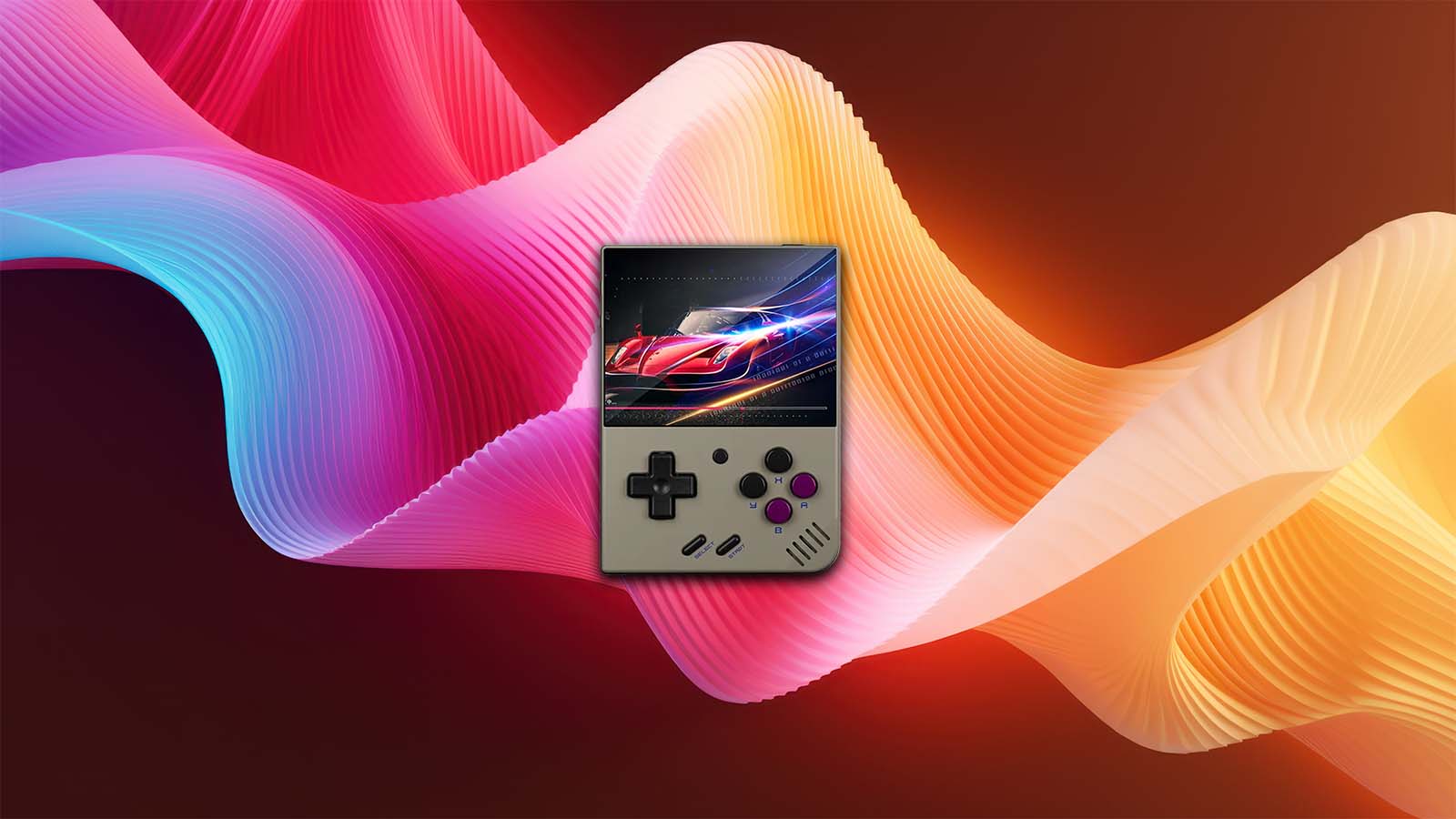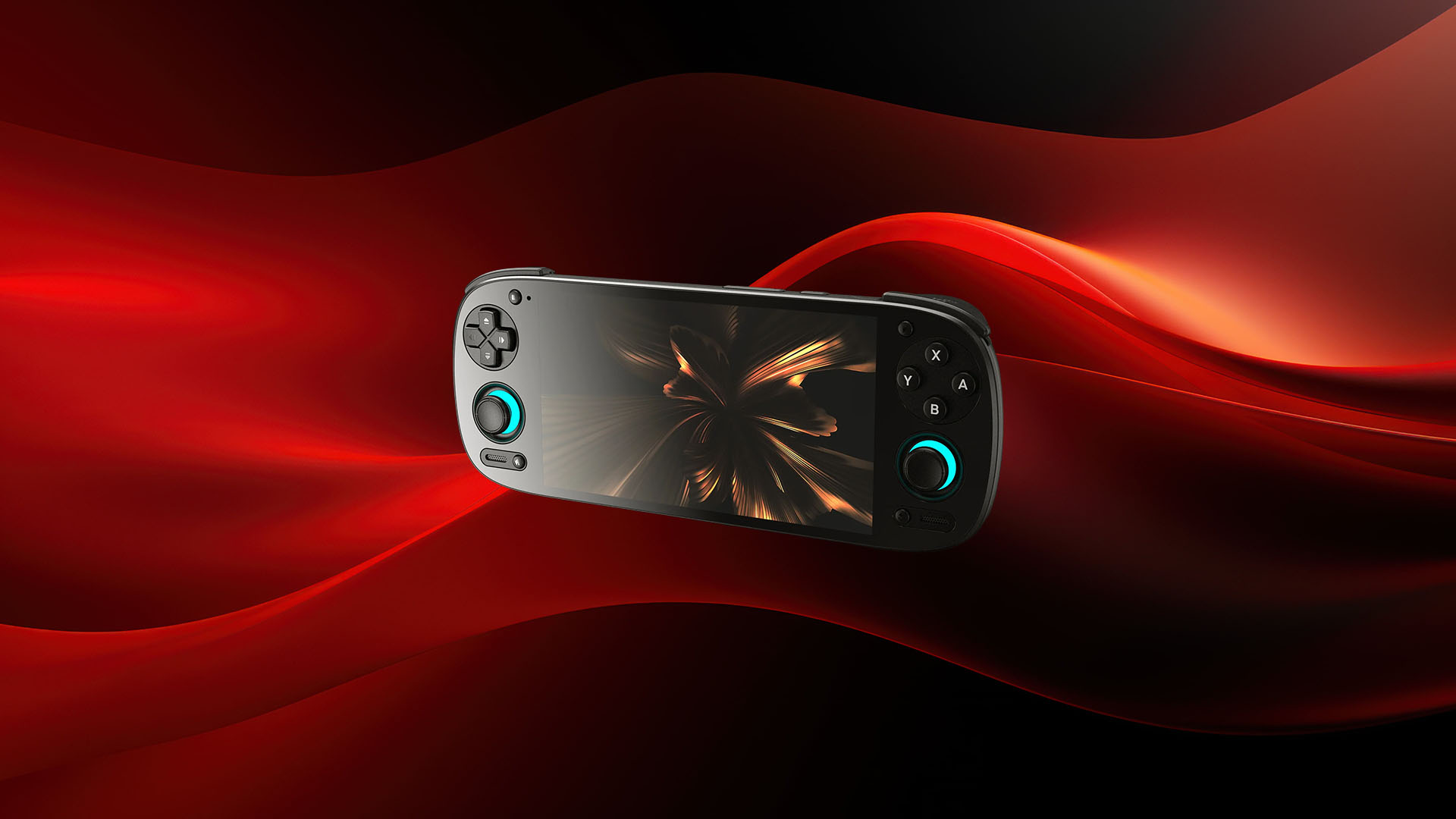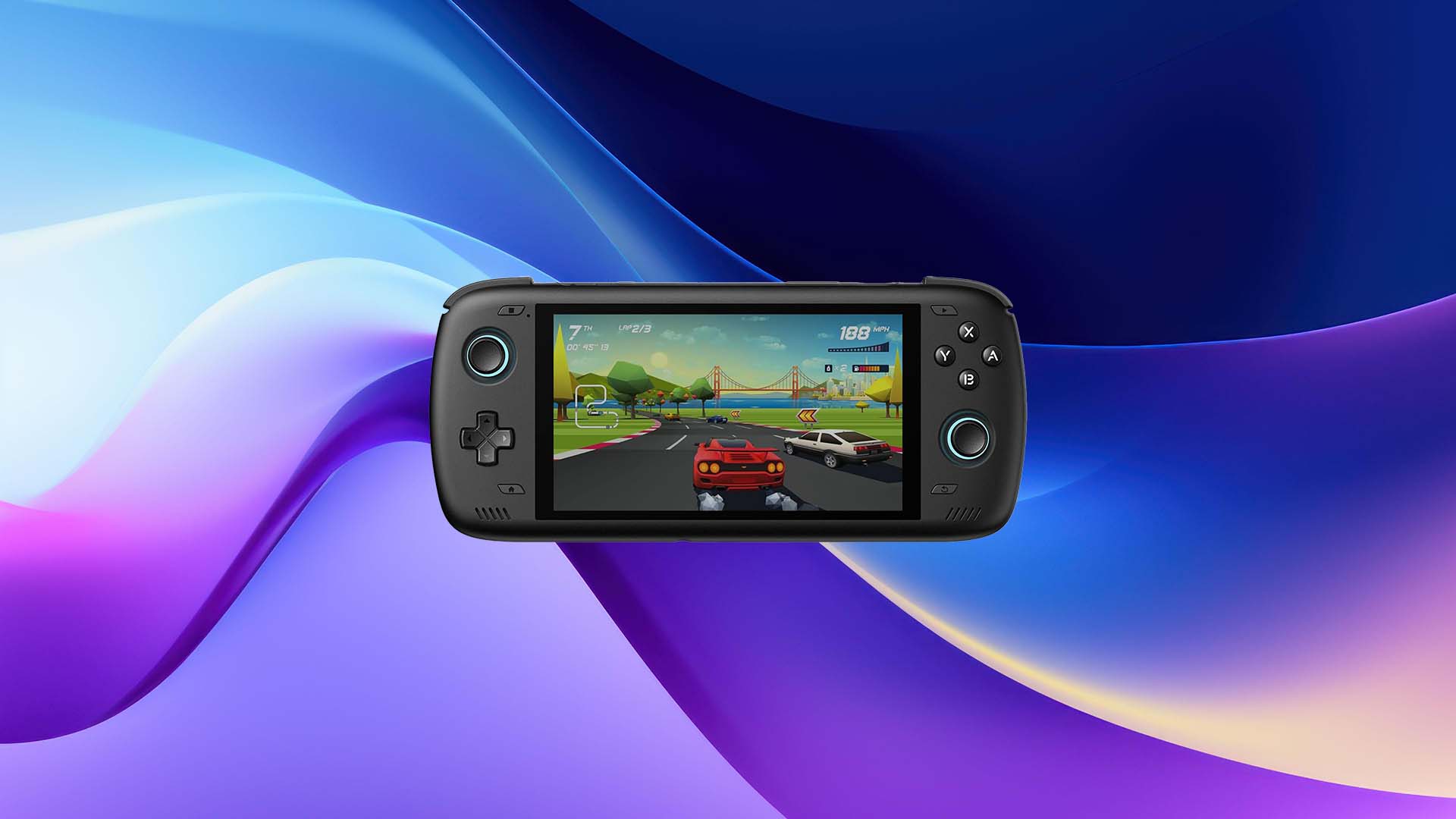
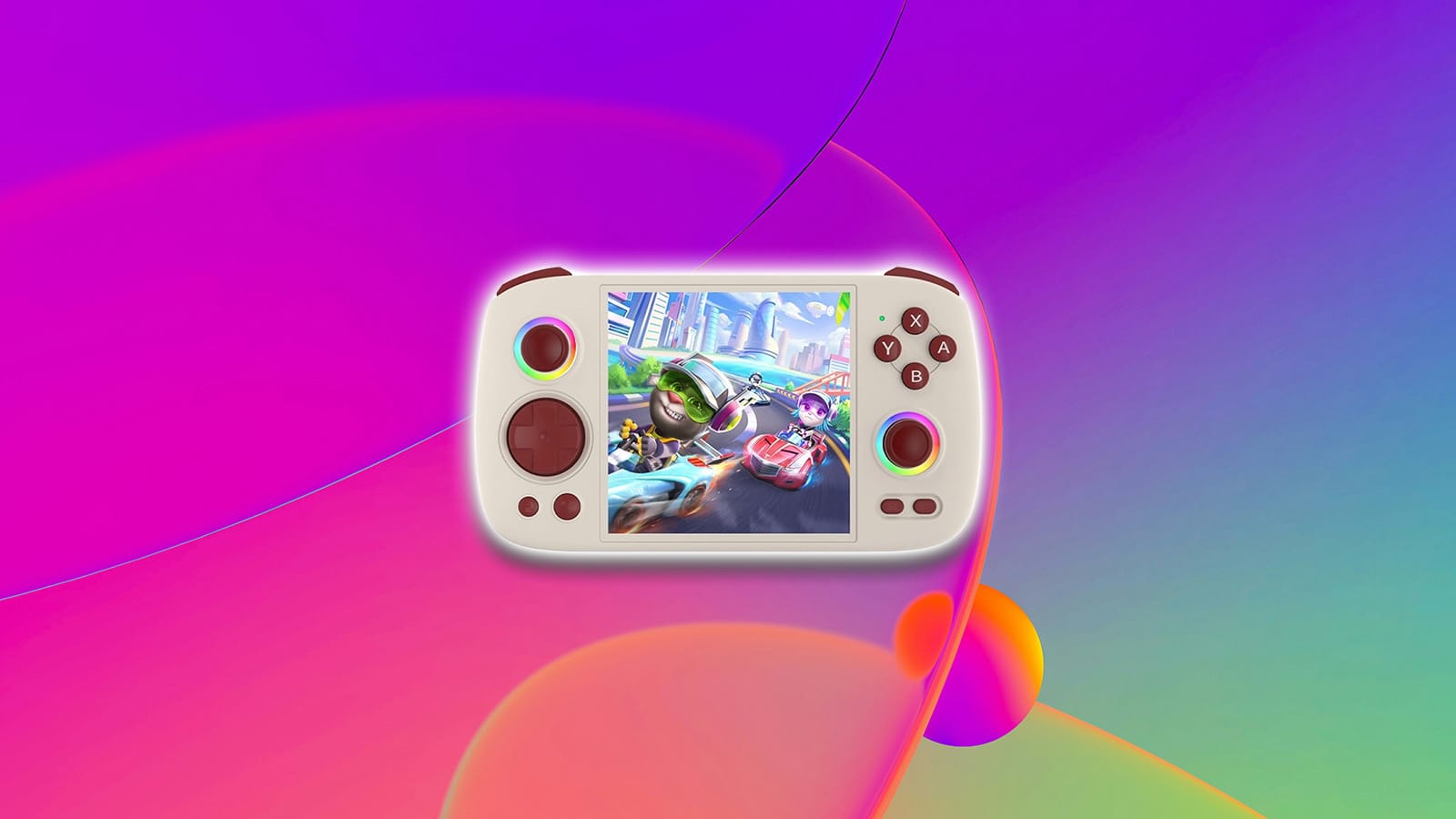
The Anbernic RG Cube isn’t just another retro handheld—it’s the kind of device that makes beginners feel like seasoned veterans within minutes. Small in stature but oversized in ambition, this square-shaped dynamo blends modern Android flexibility with old-school gaming charm, offering a frictionless entry point into the world of handheld emulation. But like any powerful little gadget, it comes alive once you know how to set it up, tune it, and unlock its hidden strengths.
That’s where this guide comes in. This is your roadmap to mastering the RG Cube from the moment you unbox it—tweaking essential settings, navigating Anbernic’s quirky interface, installing better frontends, and dialing in the perfect performance for your favorite consoles. Whether you’re here to relive childhood classics or to explore entire libraries you never got to touch, this tutorial will help you get the most out of your new pocket powerhouse.
Meet the RG Cube – A Fresh Take on Retro Handhelds
The RG Cube arrives with the kind of unconventional flair that immediately sets it apart from the usual parade of rectangular handhelds. The RG Cube may look cute and compact, but beneath its playful exterior sits a shockingly robust set of components that rival handhelds far above its price class.
| Screen | 3.95-inch IPS, 720×720 resolution, OCA full lamination, multi-touch |
| CPU | Unisoc T820, 6nm EUV 5G SoC (8 cores: 1×A76 @ 2.7GHz + 3×A76 @ 2.3GHz + 4×A55 @ 2.1GHz) |
| GPU | Quad-Core Mali-G57 @ 850MHz |
| RAM | 8GB LPDDR4X |
| Internal Storage | 128GB UFS 2.2 |
| Expandable Storage | MicroSD (TF) up to 2TB |
| Operating System | Android 13 |
| Wi-Fi | 2.4/5GHz 802.11 a/b/g/n/ac |
| Bluetooth | Bluetooth 5.0 |
| Battery | 5200mAh polymer lithium; approx. 7 hours runtime |
| Charging | USB-C, supports 5V/2A charging (~3 hours to full) |
| Audio | High-fidelity dual speakers; 3.5mm headphone jack |
| Lighting | 16M-color RGB joystick lighting with customizable modes/brightness |
| Controls | Hall joysticks, hall triggers, six-axis gyroscope |
| Cooling | High-speed fan with active heat dissipation |
| Additional Features | FOTA wireless updates, online multiplayer, streaming, wireless screencasting, vibration motor, DisplayPort 1080p output, power-saving settings |
This little square machine is loaded with modern hardware—fast memory, a sharp laminated display, a 6nm processor, active cooling, and even 1080p video output. It’s the kind of specs that makes beginners feel instantly confident and veterans pleasantly surprised. Everything inside the Cube has been chosen with intention, from the Hall-effect joysticks to the customizable RGB lighting, creating a device that feels equal parts stylish, practical, and unexpectedly powerful.
The RG Cube shines brightest in the hands of newcomers. It’s approachable, inviting, and refreshingly unintimidating, even if you’ve never touched an emulator before. The controls feel immediately familiar, the touchscreen removes guesswork, and Android 13 ties everything together with a sense of modern polish. For anyone looking to dip a toe into the emulation waters without being overwhelmed, the RG Cube is the perfect companion: compact, capable, and eager to play.
What Games Can The RG Cube Play?
The RG Cube’s real strength reveals itself the moment you start exploring what this tiny titan can actually run. Thanks to the Unisoc T820 chip and Mali-G57 GPU, it handles a huge spread of classic and modern-era systems with surprising finesse. Some consoles run flawlessly, others need a bit of tweaking, but overall the Cube delivers a remarkably capable emulation experience for its size.
| Platform | Performance Rating | Notes |
| NES / SNES / Genesis / GB / GBC / GBA | Perfect | Zero issues. Perfect scaling on the square screen. |
| PS1 | Perfect | Native-feeling performance; gorgeous on a 1:1 display. |
| Dreamcast | Excellent | Stable framerates, smooth 3D, excellent compatibility. |
| PSP | Excellent | Most titles run full speed, even 3D-heavy ones. |
| Nintendo DS | Excellent | Dual-screen layout works surprisingly well on 720×720; great performance and low input latency. |
| Nintendo 64 | Great | Most games run very well; a few notoriously heavy titles still struggle. |
| Sega Saturn | Good | 2D titles are flawless; 3D mixed but generally impressive for this chipset. |
| GameCube | Good | Highly playable with tweaks; some games run near-full speed. |
| Wii | Good | Lighter titles perform well; motion controls map nicely with gyro. |
| PS2 | Playable | Works for select titles; not ideal for heavy 3D games. |
| 3DS | Playable | 2D titles run well; UI layouts need adjusting due to square aspect ratio. |
The 8–16-bit era runs with such impeccable smoothness that it feels like the device was engineered specifically for it. NES platformers snap with pixel-perfect precision. SNES RPGs bloom with vibrant color on the Cube’s immaculate IPS display. Genesis fighters? Crisp and responsive. Even handheld classics from GBC and GBA scale beautifully thanks to the symmetrical 720×720 resolution. No hitches. No quirks. Just pure retro delight.
PS1 titles are flawless—honestly some of the best in the handheld scene—with that square screen giving early 3D worlds a strangely modern sharpness. Dreamcast, often the “problem child” of emulation, is astonishingly stable on the Cube. Fighters, racers, arcade oddities—they all run with admirable composure.
PSP emulation is equally impressive, with even 3D-heavy titles reaching smooth, consistent framerates. You’ll occasionally notice the odd aspect-ratio mismatch due to the Cube’s square display; it’s not game-breaking, just something the perfectionists will spot. Nintendo DS is the surprise standout. Dual-screen layouts map elegantly to the Cube’s geometry, and its emulation performance is solid.
N64 performs admirably, with classics like Mario 64 and Ocarina of Time holding steady. Saturn’s emulation ranges from surprisingly great (2D fighters, shmups) to “needs experimenting” with complex 3D games. GameCube and Wii push the Cube harder, but that’s part of the thrill. Many games run better than expected, especially racers and platformers, while more demanding 3D beasts require tinkering. Still, the fact that these systems are even reasonably playable on a device this tiny borders on sorcery.
This is where ambition outpaces physics a bit—but the RG Cube still puts up a fight. PS2 emulation is selective: lighter titles and 2D-centric games are very playable, while the heavy hitters sputter or stall. 3DS falls into a similar category: 2D games often shine, but dual-screen layouts and 3D rendering can feel unwieldy on a square display. Playable? Yes. Ideal? Not always. Even so, the fact that this tiny cube touches PS2 and 3DS at all is mind-bending.
The takeaway? The RG Cube is the happiest with retro classics, highly competent with the 32-bit and 128-bit era, and ambitious enough to flirt with systems well outside its weight class.
RG Cube vs. RG556 vs. RG CubeXX: What’s The Difference?
The RG Cube, RG556, and the RG CubeXX may look wildly different on the outside, but under the hood, they’re running the same muscle: the Unisoc T820.
| Feature | RG Cube | RG556 | RG CubeXX |
| Display | 3.95″ IPS, 720×720, OCA laminated, touchscreen | 5.5″ AMOLED, 1080p, touchscreen | 3.95″ IPS, 720×720, non-touch |
| Aspect Ratio | 1:1 (Square) | 16:9 | 1:1 (Square) |
| Processor | Unisoc T820 | Unisoc T820 | Unisoc T820 |
| GPU | Mali-G57 | Mali-G57 | Mali-G57 |
| RAM | 8GB LPDDR4X | 8GB LPDDR4X | 4GB LPDDR4X |
| Storage | 128GB UFS 2.2 | 128GB UFS 2.2 | 64GB (varies by model) |
| Operating System | Android 13 | Android 13 | Android 13 |
| Controls | Hall joysticks + Hall triggers | Hall joysticks + Hall triggers | Standard joysticks + standard triggers |
| Touchscreen | Yes | Yes | No |
| RGB Lighting | RGB-lit sticks | RGB-lit sticks | No RGB lighting |
| Cooling | High-speed fan (active cooling) | High-speed fan (active cooling) | Passive cooling |
| Ideal For | Retro gaming, indie titles, 1:1 emulation layouts | PSP, Android games, streaming, widescreen systems | Budget buyers who want T820 performance |
| Strengths | Compact, unique form factor, great for vertical games | Best for widescreen gameplay, larger screen for streaming | Cheapest T820 device, same core performance |
| Weaknesses | Smaller screen, not ideal for streaming | Larger footprint, less pocketable | No Hall sticks, no touchscreen, reduced RAM |
| Target Audience | Beginners, retro-first gamers | Gamers who want high-res streaming + PSP/Android | Budget-conscious players |
The RG Cube wears its quirks proudly. With its square 1:1 display, it feels tailor-made for retro purists who want handheld gaming to feel… handheld. No black bars. No awkward stretching. Just clean, era-authentic presentation. Its compact frame makes it the easiest to pocket, while full Android support and a responsive touchscreen open the door to custom launchers, cloud gaming, and mobile apps.
If the Cube is old-school soul, the RG556 is modern swagger. Its wide 16:9 OLED screen is perfect for everything the Cube awkwardly crops: Android games, emulators that benefit from widescreen (PSP especially), and cloud streaming services like Game Pass, PS Remote Play, and GeForce Now. It’s built for players who want their retro handheld to moonlight as a mini Android console. Bigger, sharper, and more ergonomic for long play sessions, the 556 leans into versatility without losing its retro roots.
Then there’s the CubeXX—the wildcard. It’s cheaper, chunkier, and unapologetically no-frills. No touchscreen. No hall-effect sticks. No premium polish. But because it still has the same performance as the other two devices, it punches far above its price tag. The CubeXX is the kind of device you’ll want when you need maximum performance per dollar, even if it means sacrificing a few modern conveniences.
First-Time Setup
Booting up the RG Cube for the first time feels exciting… right up until the default Android quirks start throwing elbows. The good news? A few quick adjustments transform the experience from “budget handheld” to “polished pocket companion.” These tweaks are fast, painless, and dramatically improve how the device feels from the moment you start swiping around.
Start by disabling Android’s hyper-aggressive battery management, which loves to kill apps like Daijishō, RetroArch, and standalone emulators the second you lock the screen. Then, set the refresh rate to a stable 60Hz—it eliminates micro-stutter and keeps animations smooth. Next, adjust the display scaling (DPI) so menus, icons, and text fit naturally on the 720×720 square panel.
Turn off auto-brightness, because the sensor often behaves like it’s detecting solar flares, not indoor lighting. And while you’re there, set your audio and vibration levels to something sane so the Cube doesn’t buzz like an old pager every time you tap a menu.
Fixing Notifications, Vibration, Navigation & Screen Timeout
Out of the box, the Cube’s notifications are erratic, the vibration motor is too eager, and the navigation layout makes simple tasks feel clunky. A quick tune-up solves everything:
- Turn off vibration spam for system taps and keyboard presses.
- Extend screen timeout so emulators don’t fade to black mid-menu.
- Clean up notifications by disabling redundant system prompts.
- Switch to three-button or gesture navigation depending on your comfort level.
- Enable “Do Not Disturb” rules for uninterrupted gaming sessions.
Essential Quality-of-Life Tweaks Beginners Shouldn’t Skip
These final adjustments tie everything together and ensure your Cube behaves exactly how you expect:
- Enable haptic feedback only where it matters
- Increase touch sensitivity for better menu responsiveness
- Pin essential apps so Android doesn’t close them
- Turn on “Prevent accidental wake-up” to stop pocket activations
- Set default apps for video, file management, and image viewing
- Disable unused Google services to save battery and reduce background drain
Dial in these quick fixes, and the RG Cube stops feeling like a quirky budget handheld and starts feeling like a cohesive, premium emulation device built for beginners.
Understanding Anbernic’s Android Interface
The RG Cube runs a lightly modified version of Android, but it doesn’t behave quite like the phone in your pocket. Think of it as a hybrid layout—part gaming console, part touchscreen tablet, part stripped-down launcher. Once you understand its quirks, navigating the Cube becomes second nature.
The first thing you’ll notice is the Ambient Light toggle. Tap it once to turn the joystick LEDs on or off. Long-press it, and a full lighting control menu appears, offering brightness sliders and effects like breathing, rainbow, marquee, and chasing. It’s surprisingly robust for such a tiny device.
The home screen is your central hub, populated with a mix of Android apps, emulator icons, and Anbernic shortcuts. It’s simple, but not always intuitive. Swiping down reveals the Quick Settings shade, where you’ll control Wi-Fi, brightness, rotation lock, and refresh rate. Swipe again and you get the deeper notification drawer—helpful for tracking downloads, not so helpful when system pop-ups start piling up.
The App Drawer behaves exactly like stock Android, giving you access to everything installed on the device. Long-pressing icons lets you drag, rearrange, or uninstall them, but the layout can feel cramped on a square display until you tweak scaling later.
Navigation depends on what you choose: the default three-button bar at the bottom or the far sleeker gesture navigation. Both work, but gestures free up space and make the interface feel modern rather than dated.
NS Mode vs. Xbox Mode
The Cube supports two controller layouts:
- NS Mode — Mirrors Nintendo’s ABXY layout.
- Xbox Mode — Matches Xbox-style input mapping.
Xbox Mode is the one you want. Most Android games, cloud services, and emulators are designed around Xbox mapping, which means cleaner compatibility, fewer mismatched buttons, and proper analog trigger detection. NS Mode is fine for DS/3DS emulation. For everything else, Xbox Mode is king.
How To Fix The Annoying Control Mode Bug

Every time you reboot, the Cube quietly switches back to NS Mode—even if you didn’t ask it to. The fix is simple: Pull down the Quick Menu, and toggle Xbox Mode off, then on again. It’s mildly annoying, but takes two seconds once you get used to the dance.
Performance Toggles: Auto vs. High Mode
You’ll also see a performance selector:
- Auto Mode – Dynamically manages CPU speed based on workload.
- High Mode – Supposed to boost performance, but… doesn’t.
Like on many other Anbernic handhelds, High Mode offers no real improvement. Auto Mode is perfectly fine for everything up to PS2 and GameCube.
Fan Profiles: Stop, Auto, Cool, Strong
The Cube includes an active cooling fan, and the Quick Menu gives you full control:
- Stop – Fan off completely.
- Auto – Fan turns on only when needed.
- Cool – Slightly more aggressive.
- Strong – Maximum airflow.
The device rarely runs hot, so Auto is ideal for 99% of use cases. You’ll mostly hear the fan kick in during demanding PS2, Dreamcast, or Switch sessions.
Using Keymapp for Games Without Controller Support
Not every Android game recognizes controllers by default. That’s where Keymapp comes in. Tap the Keymapp icon in the Quick Menu and you’ll see a floating overlay that lets you:
- Place virtual touchpoints
- Map them to physical buttons
- Save custom layouts per game
This is essential for titles like Genshin Impact or certain shooters that rely on touchscreen input.
The RG Button: Why You Should Avoid It

At the bottom-left of the device is the dedicated RG Button, which launches Anbernic’s custom frontend. It looks convenient, but it isn’t. The built-in launcher limits emulator customization, hides certain advanced settings, loads slowly, and doesn’t organize large libraries cleanly.
Once you get a feel for these moving parts—home screen, quick settings, navigation, and the app drawer—the RG Cube stops feeling like a weird, off-brand Android device and starts behaving like a pocket-sized gaming OS built for efficiency.
Best Apps to Install Immediately
So your Anbernic RG Cube is booted up, connected to Wi-Fi, and ready to rumble. Now what? It’s time to deck it out with the best apps to transform your handheld into a retro powerhouse.
Gamepad Mapping Utilities
Want to remap buttons, fine-tune dead zones, or swap between control layouts?
- Game Controller KeyMapper – Tweak everything down to the stick sensitivity.
- Mantis Gamepad Pro – Especially useful for mapping touchscreen-only Android games.
- ReWASD (Windows only) – If you’re configuring from a PC first, this can prep profiles.
Perfect if you’re jumping between Android games and emulators.
Optional But Awesome
Want to stretch the Odin 2 beyond retro gaming? These apps unlock streaming, cloud saves, and multimedia:
- Moonlight – Stream PC games over your network using NVIDIA Gamestream.
- Steam Link – Stream your Steam library right to the handheld.
- RetroArch – Still a strong all-in-one emulator if you like a unified experience.
- Solid Explorer – A must-have for file management.
- VLC or MX Player – Watch videos like it’s a tiny media center.
- Dropbox / Google Drive – Sync save files across devices.
How to Add Games to Your Anbernic RG Cube (Step-by-Step)
Now it’s time for the real fun—loading up your game library. Whether you’re a ROM hoarder or just want to play Teenage Mutant Ninja Turtles: Turtles in Time and call it a day, this guide walks you through the process cleanly.
Tools You’ll Need
To get started, make sure you’ve got the basics:
- A quality microSD card (128GB+ recommended)
- A microSD to USB adapter or a device with a built-in SD reader
- A computer (Windows, macOS, Linux all work fine)
- Your legally obtained ROMs and BIOS files 😉
Folder Structure: Keep It Clean
A well-organized ROM folder makes everything easier—especially when you start using frontends like ES-DE or Daijisho.
Here’s the standard structure:
📁/ROMS/

    📁/NES/

    📁/SNES/

    📁/GBA/

    📁/PS1/

    📁/Dreamcast/

    📁/BIOS/
Tips for Smooth Sailing:
- Use clear folder names (not “random stuff” or “games2”)
- Keep BIOS files separate in a /BIOS/ folder
- Rename games for clarity: Ape_Escape_USA.bin > Ape Escape (USA).bin
- For multi-disc games (PS1): Use .m3u playlist files or label clearly (Disc 1, Disc 2, etc.)
Transferring Files
When transferring files, you’ve got two solid options:
USB Transfer (Plug & Play)
- Plug your RG Cube into your computer via USB-C
- Tap File Transfer Mode on your Pocket 5 screen
- Your internal storage + SD card will show up on your computer
- Drag and drop your ROMs into the appropriate folders
- Safely eject the device
SD Card Transfer (Faster for Big Files)
- Remove the SD card from your device
- Insert it into a card reader connected to your PC
- Open the “ROMS” directory (or create one if needed)
- Drop in games and BIOS files as outlined above
- Reinsert into your RG Cube
Pro Tip: Using an SD card reader is generally faster—especially for transferring large PS1 or GameCube ROMs.
Organizing for Frontends
Frontends like Daijisho, ES-DE, or Beacon rely on clean structure and naming. Here’s how to stay frontend-friendly:
- Each system should have its own folder
- Use the No-Intro ROM naming convention for best results with scraping
- Keep BIOS files in a dedicated folder and set the path in your emulator settings
- Want pretty box art? Tools like Skraper or Daijisho’s built-in scraper can auto-download metadata and visuals
TL;DR 🥱
- Create folders: /ROMS/NES, /ROMS/PS1, /ROMS/BIOS, etc.
- Use a microSD card + card reader (or USB transfer)
- Name your games clearly
- Keep BIOS separate
- Test your emulator paths + game launches
- Prepare for scraping if you want cover art and info
Frontends Deep Dive: Make Your Library Shine
The RG Cube is a great emulation handheld—but let’s be honest: Anbernic’s custom frontend isn’t the best. If you want your game library to look like a sleek digital museum instead of a basic file list, it’s time to level up with a proper frontend.
Top Frontends for Android: Pros & Cons
ES-DE (EmulationStation-Desktop Edition) – The Heavy Hitter
- Pros:
- Familiar look for EmulationStation fans
- Retro-feeling themes with lots of flair
- Great performance on Android
- Big community support
- Cons:
- Slight learning curve for setup
- No touchscreen support
Best for: Arcade heads and power users with big libraries
Daijisho – Retro Arcade Vibes
- Pros:
- Clean, modern interface
- Free and lightweight
- Smooth performance, even with massive libraries
- Built-in scraper for box art and metadata
- Cons:
- Limited customization
- No longer supported by the developer
Best for: Casual users who want a beautiful but simple experience.
Beacon – The Minimalist’s Dream
- Pros:
- Easy to set up and amazing performance
- Optimized for Android gaming handhelds
- Intuitive navigation and touchscreen support
- Swift updates and compatible with the latest emulators
- Cons:
- Lacks a variety of customization features
- Scraping is not as powerful as other frontends
Best for: Gamers who want a launcher that just works.
Importing Metadata & Box Art
Once your frontend is chosen, it’s time to pretty things up:
How to Add Box Art Automatically
- Daijisho/Beacon: Built-in scraper. Just scan your ROM directories and let the frontend work its magic.
- ES-DE: Use Skraper on your PC to build your game folders with metadata and art, then transfer them to your Pocket 5.
Metadata Tips:
- Name your ROMs clearly (no “ROM (USA) [v1.1]” garbage)
- Organize games by system in subfolders:
/ROMS/NES, /ROMS/SNES, /ROMS/GBA, etc. - Keep BIOS files in a central /BIOS folder for smoother compatibility
TL;DR 🥱
| Frontend | Best For | Key Strength |
| ES-DE | Power users | Deep customization |
| Beacon | Minimalists & newcomers | Console-like experience |
| Daijisho | Retro arcade fans | Sleek & simple UI |
No matter which frontend you roll with, one thing’s for sure: once you fire it up and see your retro library come to life with gorgeous box art and crisp menus, you’ll never want to go back to plain folders again.
Troubleshooting for Beginners
Even though the RG Cube is one of Anbernic’s most polished Android handhelds yet, beginners may still run into a few snags during setup or gameplay. The good news? Most issues are simple to fix and rarely require anything beyond a quick settings tweak or reboot. This section walks you through the most common beginner hurdles—controller quirks, wireless hiccups, and the mysterious world of firmware updates—so you can get back to gaming without headaches.
Fixing Controller Mapping Issues
Controller oddities on the RG Cube almost always come down to one thing: input mode confusion. Here’s how to sort things out:
1. Switch to Xbox Mode (the most compatible option): Swipe down → find the controller toggle → select Xbox Mode. This ensures proper button mapping in Android games, cloud services, and most emulators.
2. Reset the mode after every reboot: A known bug forces the device back into NS Mode when restarting. Just toggle Xbox Mode off → on again. Quick and painless.
3. Fix mismatched buttons in emulators: Inside each emulator, open Controller Settings, select Autodetect Layout, toggle Use system keymapping if available, and remap manually only if needed.
4. For games without controller support: Use Keymapp from the Quick Menu to bind physical buttons to touch actions—especially useful for ARPGs and shooters.
Resolving Wi-Fi or Bluetooth Problems
The RG Cube’s wireless stack is generally stable thanks to dual-band Wi-Fi and Bluetooth 5.0, but here’s how to handle the occasional misfire.
1. Restart the radios: Swipe down → toggle Wi-Fi or Bluetooth off → on. Simple, but surprisingly effective.
2. Check for 5GHz compatibility: If speeds feel sluggish, ensure you’re connected to your 5GHz network, not the 2.4GHz band.
3. Re-pair Bluetooth controllers: If a controller stops responding, forget the device, re-pair from scratch, and make sure no other devices nearby are auto-pairing.
When to Use FOTA Firmware Updates
The RG Cube includes FOTA (Firmware Over The Air) updates, which are handled directly through Android. But you shouldn’t update every time one appears. Here’s the smart approach:
Update when:
- Anbernic posts a fix for controller bugs
- Wi-Fi or Bluetooth instability appears
- Major performance improvements are announced
- Your device has app crashes or random freezes
Avoid updating when:
- You’re mid-setup and still configuring apps
- The firmware notes don’t mention anything affecting your usage
- Community feedback reports new bugs
How to update safely:
- Charge the device past 50%
- Connect to stable Wi-Fi
- Back up emulator configs or BIOS files
- Then run the update via:
Settings → System → Wireless Update (FOTA)
FOTA updates are rarely dramatic, but they keep the Cube stable and secure over time—especially as new emulators and apps evolve.
Conclusion
The RG Cube is one of those rare devices that feels immediately right the moment you start using it. It’s compact yet capable, stylish without being fragile, and powerful enough to handle a surprisingly wide range of retro and Android gaming. More importantly, it lowers the barrier to entry — beginners won’t feel overwhelmed, and experienced tinkerers will appreciate just how much performance and flexibility Anbernic squeezed into such a playful form factor.
Whether you’re diving into classic libraries, testing Android titles, or exploring emulators for the first time, the RG Cube offers a smooth, welcoming experience that only gets better as you customize it. It’s a device that invites experimentation, rewards curiosity, and makes gaming feel fun again.
If you want a handheld that’s easy to love from day one — without the steep learning curve — the RG Cube earns its spot as one of the best beginner-friendly devices on the market.

At HyperComboGamer, we believe great games deserve great coverage. That means no filler, no clickbait, or fanboyism—just honest, high-quality reviews, features, and guides that put gamers first. Whether you’re a lifelong enthusiast or just starting your gaming journey, you’ll find interesting gaming perspectives that will leave you fully satisfied.