Android is one of the most flexible gaming platforms ever made, yet it rarely feels like one out of the box. Games are scattered across emulators. Libraries live in file folders. Launching a classic title often means hopping between apps instead of diving straight into the action. Daijishō exists to fix that.
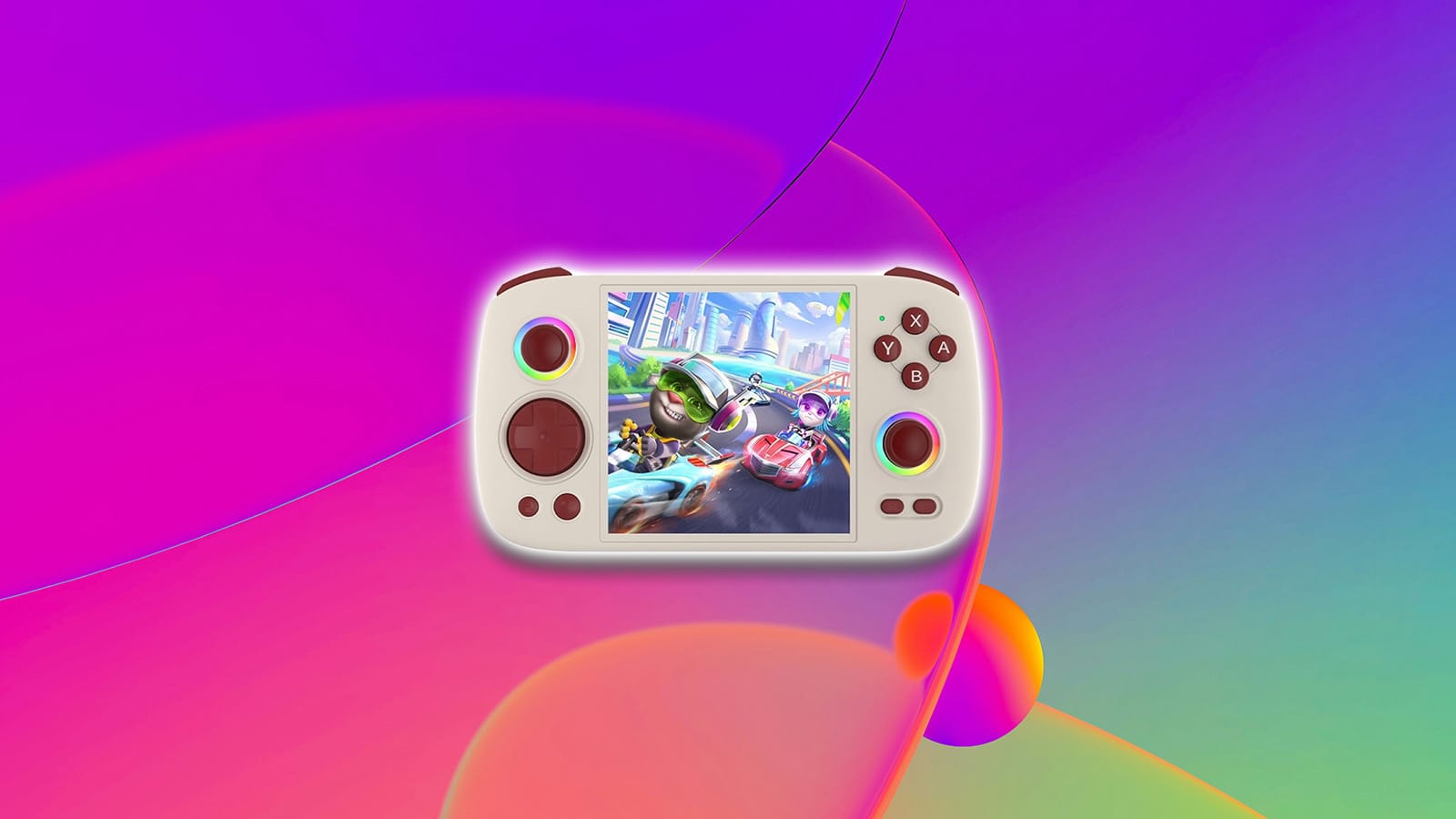
Whether you’re setting this up on a dedicated retro handheld, an Android TV box, or a phone paired with a controller, Daijishō gives your library structure and personality. It’s built around integrated experience, extensibility, and practical usability, all with the goal of keeping your focus where it belongs: on the games. In this guide, you’ll learn how to set up Daijishō properly from start to finish, avoid the most common pitfalls, and customize it into a polished frontend that feels tailor-made for your setup.
What Is Daijishō?
Daijishō is a retro frontend launcher for Android that brings order, style, and structure to your game library. Instead of opening individual emulators and digging through file browsers, Daijishō acts as a central hub. You tell it where your ROMs are stored and which emulators you’ve installed, and it connects everything into a single, console-like interface.
It’s similar to the dashboard you see when you power on a Switch, PlayStation, or Xbox, just built for retro gaming. Each platform gets its own page, complete with system artwork, game box art, background videos, metadata, and quick-launch options. From Game Boy and Super Nintendo to PlayStation and beyond, everything lives in one cohesive space.
Fun Fact: The name itself has an interesting bit of history. “Daijishō” (だいじしょう) refers to 台字章 (Tái zì zhāng), a pattern widely used in Taiwan during the Japanese period. It’s a small detail, but it fits the app perfectly. Thoughtful, intentional, and rooted in design.
Tips Before You Begin
Before diving into Daijishō, it’s worth slowing down for a moment and doing a bit of prep work. This is one of those setups where ten minutes of organization up front can save you an hour of confusion later. Daijishō is smart, but it assumes you’ve already done the basics. Get those right, and the rest of the process feels almost effortless.
First, make sure your ROMs are organized in a clean, logical way. The simplest and most reliable approach is to create a main ROMS folder, then add a subfolder for each system you plan to emulate. Game Boy Advance, Super Nintendo, PlayStation, and so on. Keep the actual game files directly inside those system folders, not buried three folders deep. This makes it much easier for Daijishō to correctly identify which games belong to which platform when you point it to a directory. If you’re using a dedicated retro handheld, there’s a good chance this structure already exists, so you can simply work with what’s there instead of reinventing the wheel.
Second, install and configure your emulators before touching Daijishō. This step is crucial. Daijishō scans your device for supported emulators during setup and automatically assigns them as default players for each platform. If your emulators are already installed and ready, this process is mostly hands-off. If they’re not, you’ll be doing extra cleanup later, manually switching emulators and cores for every system. It’s not difficult, but it’s unnecessary work.
Downloading and Installing Daijisho
Getting Daijishō onto your Android device is refreshingly straightforward, with two main routes depending on how adventurous you’re feeling.
For most people, the Play Store version is the clear winner. It’s the easiest option, it updates automatically, and it requires zero extra permissions juggling. Simply search for Daijishō on the Play Store, install it, and you’re good to go. If you’re setting this up on a dedicated gaming handheld or a device you don’t plan to tinker with constantly, this is the version to stick with.
There is also a GitHub release available, which is useful if the Play Store isn’t accessible on your device or if you specifically need a newer build. If you go this route, download the APK from the official Daijishō GitHub releases page and open it using your browser or file manager. Android will prompt you to allow app installs from that source, usually Chrome or your file manager, so just approve it and continue. It sounds scarier than it is, but it’s a standard Android step.
Once installed, open Daijishō and give it a moment. The first launch includes a brief loading screen while it sets things up behind the scenes. When that’s done, you’ll be greeted with a welcome screen and a prompt to download platforms. This is Daijishō’s way of asking what systems you actually want to see. In other words, what you plan to play. From here, you’re officially past the gate and into the fun part.
First-Time Setup: Downloading Platforms
This is the moment where Daijishō starts to feel less like an app and more like a console dashboard coming to life. When you tap Download Platforms, Daijishō isn’t downloading games or emulators. It’s asking you to define your ecosystem.
You’ll be presented with a long, almost intimidating list of platforms. Everything from classic consoles to handhelds, arcade systems, and even modern platforms. The key here is not to overthink it. You don’t need to select everything in one go. Daijishō makes it easy to add or remove platforms later, so starting small is often the smartest move.
For a first setup, choosing just one or two platforms helps you understand how everything works without feeling overwhelmed. Pick something simple, like Game Boy Advance or Super Nintendo, then tap Import. Instantly, Daijishō generates clean platform pages complete with bold background artwork, system branding, and new navigation options at the bottom of the screen.
As you add more platforms later, they’ll line up neatly along the bottom, forming a carousel of systems you can scroll through. GBA, SNES, Game Boy, PlayStation, and beyond. Each one feels like its own mini console inside the larger interface.
Adding ROM Paths the Right Way
At this point, you’ve told Daijishō what platforms you care about. Next, you’ll tell it where the games actually live, and that’s where things really start to click. Now that Daijishō knows which platforms you want to see, it’s time to answer the most important question of all. Where are the games? This step is where a clean ROM setup really pays off.
Start by opening one of your platforms, then tap Paths and hit the Add More button. You’ll be taken into Android’s file browser, where you can navigate to the folder that contains the ROMs for that specific system. Choose the folder carefully. The best practice is to point Daijishō directly at the folder where the game files live, not a parent folder and not a folder full of subfolders. ROMs should sit right there in the directory you select.
Once you’ve chosen the folder, tap Sync. Daijishō will immediately scan the directory and begin scraping artwork, videos, titles, and metadata for every game it finds. This is where the frontend flexes its muscles. Box art appears. Background videos kick in. Your once-boring file list starts looking like a curated library.
Repeat this process for each platform you’ve added. Game Boy Advance gets its folder. Super Nintendo gets its own. Keep things clean and consistent, and Daijishō will reward you with fewer errors and better scraping results. Once your ROM paths are locked in and synced, you’re officially past the setup phase and into the fun stuff.
Pro Tip: If something looks off, don’t panic. You can always return to Paths later to add, remove, or fix folders.
Exploring a Platform’s Main Menu
With your ROMs synced and artwork in place, this is where Daijishō really starts to shine. Open any platform and you’re dropped into its main menu, a space that feels less like a file browser and more like a digital shelf dedicated to that system.
Front and center, you’ll see a few key options. The Random button is exactly what it sounds like. One tap, and Daijishō picks a game for you. Perfect for those moments when choice paralysis hits harder than a final boss. If you’d rather browse with intention, head into the Library.
The Library view shows all your games for that platform, complete with box art and media. On the right side, you’ll find a set of quick actions. Play launches the game. Add Favorite pins it for easy access later. Detail opens a deeper info page. Grid View switches from a list to a visual grid, which is often more satisfying once your artwork is scraped. Edit Item lets you rename a game if the title didn’t scrape quite right.
This is also where you can step in when Daijishō needs a little help. If a game’s artwork or metadata didn’t scrape correctly, you can tweak the title, enable aggressive scraping, or manually add your own images and videos. Most of the time, a small adjustment is all it takes.
Inside the Game Detail Page
Clicking into Detail is where Daijishō shows off its personality. This isn’t just a glorified info screen. It’s a mini showcase designed to make every game feel like a featured title.
As soon as the page loads, you’ll usually notice a gameplay video rolling quietly in the background. It’s subtle, but it adds instant atmosphere, especially on larger screens or handhelds with good displays. Scroll down and you’ll find a clean breakdown of information: release year, developer, genre, and other metadata that helps contextualize the game beyond its box art.
If you’ve logged into RetroAchievements, this page becomes even more powerful. You’ll see achievement progress, completion percentages, and ratings tied directly to that game. It adds a modern layer to classic titles, turning old favorites into something you can actively track and work through, much like a contemporary console experience.
This screen is also where you’ll immediately notice if something didn’t scrape correctly. Missing videos, incorrect descriptions, or mismatched artwork stand out here, making it easy to jump back and fix them if needed. When everything lines up, though, the result is slick, immersive, and surprisingly premium for a frontend.
Once you’ve soaked it in, back out to the platform menu. The real charm of Daijishō is how effortlessly it lets you move between browsing, learning, and playing without ever breaking the flow.
Testing Your Setup
Once your emulator and core are properly set, it’s time for the moment of truth. This is where all the prep work either pays off instantly or points you toward the last small tweak you need to make.
Head back to a platform, pick a game, and tap Play. You’ll likely see the process warning one last time. Confirm it and give the system a second. If everything is configured correctly, the emulator should launch and the game should boot exactly as it would if you opened it directly from the emulator itself. No black screen. No silent failure. Just the game.
If it loads, great. Test a second title from the same platform just to be safe. This confirms that the issue wasn’t a one-off and that your ROM path, emulator, and core are all working together properly. Once one platform behaves, the same process applies cleanly to the rest.
Games Not Loading? Here’s What’s Really Happening: Nine times out of ten, the emulator or core selection is the culprit. Go back to the platform’s Player Settings and double-check the emulator and core selection. Go back to the platform’s main page and tap the pencil icon to edit it. Scroll down until you reach Player Settings. Under Default Player, you’ll likely see something Daijishō picked automatically.

Tap the arrow and you’ll get a full list of available emulators and cores that are installed on your device. First, find the platform, like Game Boy Advance. Afterwards, find the emulator you actually use. From there, choose the specific core you know works, such as mGBA. Once selected, back out and try launching a game again. This time, the game should load exactly as expected. This step must be repeated for every platform you add.
Diving Into Daijisho Settings
Once your games are launching properly, it’s time to dial things in. Daijishō’s settings are where a good setup becomes a great one, and thankfully, most of what matters lives in a few focused sections rather than a maze of toggles.
From the main interface, head to the Settings tab. You’ll notice two layers here. One gives you quick access to Android’s system settings, which is handy when you need to adjust permissions or default apps. The other is Daijishō’s own settings, and that’s where the real tuning happens.
Start in the Library section. This area controls how Daijishō manages your games behind the scenes. If you add or remove ROMs regularly, the Sync entirely option is your best friend. It refreshes artwork, metadata, and listings across your entire library in one go. Enabling Clear all disjointed items on sync is also a smart move, as it tells Daijishō to automatically remove games from the interface if the files no longer exist on your device.
If you’re missing artwork or seeing mismatched media, Aggressive scraping can help, but it’s best used selectively. It’s powerful, but it can occasionally grab the wrong assets if your filenames are messy. Another highly recommended toggle is Disable player warnings. This removes the repeated process-killing pop-up when launching games. It looks scary, but it doesn’t harm anything, and turning it off makes the experience far smoother.
You can also enable the sync icon at the top of the interface, giving you a one-tap way to refresh your library whenever you add new games. Most of the remaining options can be left alone unless you enjoy deep tinkering.
Customizing the Look and Feel
This is the part where Daijishō stops feeling like a setup project and starts feeling like your console. The frontend is already clean out of the box, but a few visual tweaks can dramatically change how it feels to use day to day.
Head back into Settings and jump into the Appearance section. The first thing most people will want to fix is the theme. Light mode works, but on a gaming device it can feel harsh, especially in low light. Switch on Dark theme, and if you want things even cleaner, enable Pure Dark for true black backgrounds that look great on OLED screens.
At the top of the Appearance menu, you’ll see Wallpaper Packs. This is where Daijishō’s personality really shines. These packs act like themes, replacing the default platform backgrounds with community-made artwork tailored to each system. The Game Boy Advance, Super Nintendo, PlayStation, and more all get their own custom visuals, turning each platform into a distinct space.
There isn’t a built-in preview gallery, so choosing a pack can feel a bit blind. Many users browse the community gallery online to compare styles before downloading, but once you pick one, applying it is simple. Select the pack, tap Download, confirm the replacement, and Daijishō will update everything automatically. Head back to your platforms and you’ll immediately see the difference.
These changes don’t affect performance or functionality, but they massively impact how inviting the interface feels. When every platform has its own visual identity, browsing your library becomes half the fun.
RetroAchievements: Making Retro Games Feel Modern
Retro games might be decades old, but RetroAchievements gives them a second life with modern goals and bragging rights. Daijishō integrates this system beautifully, turning classic titles into something you can track, measure, and slowly conquer.
If you already have a RetroAchievements account, head into the RetroAchievements section in Daijishō’s settings and log in. If you don’t, it’s worth taking a moment to create one. RetroAchievements adds achievement support to hundreds of classic games across multiple systems, rewarding exploration, skill, and sometimes outright stubbornness.
Once you’re logged in, the benefits show up almost immediately. Game detail pages start displaying achievement data, including how many you’ve unlocked, your completion percentage, and even difficulty ratings. Suddenly, firing up an old favorite isn’t just about nostalgia. It’s about finishing what you never did as a kid.
This integration also feeds into other parts of Daijishō, especially widgets and collections. You can quickly see which games you’ve been actively playing, which ones still have achievements left to earn, and where you’ve made the most progress. It’s subtle, but it adds structure to a library that might otherwise feel overwhelming.
RetroAchievements doesn’t change how the games play. It changes how you engage with them. And once it’s enabled, it’s hard to imagine going back.
Backup and Restore
After you’ve spent time organizing platforms, fixing artwork, choosing themes, and dialing in emulators, the last thing you want is to lose all that work. That’s where Daijishō’s backup and restore feature quietly earns its keep.
In Settings, head to Backup and Restore. Daijishō uses Google Drive to store your configuration, which means your setup lives safely in the cloud instead of being locked to one device. With backups enabled, your platforms, paths, settings, widgets, and general layout are preserved in case something goes wrong.
This is especially useful if you’re using a dedicated Android handheld, experimenting with different ROM setups, or planning to migrate to a new device later. A factory reset, firmware update, or accidental uninstall doesn’t have to mean starting from scratch. Restore the backup, wait a moment, and Daijishō snaps back into place like nothing happened.
You don’t need to babysit it either. Once enabled, backups happen automatically, quietly doing their job in the background. It’s one of those features you hope you never need, but when you do, you’ll be very glad it’s there.
Widgets: Collections, Shortcuts, and Power Features
If platforms are the backbone of Daijishō, widgets are the muscle. This is where the frontend stops being a static library and starts adapting to how you actually play games.
Widgets live in their own tab and act like smart collections or shortcuts. To create one, tap New Widget in the top-right corner and choose a type. One of the easiest and most useful examples is the RetroAchievements widget. Add it, and Daijishō instantly builds a living list of games you’ve earned achievements in. Tap into it and you’ll see progress, recent activity, and individual achievement details without digging through menus.
But widgets aren’t limited to achievements. They can represent favorite games, recently played titles, or custom groupings that make sense to you. Think of them as curated shelves rather than full libraries. Instead of scrolling through hundreds of games, you jump straight to what matters right now.
This is especially powerful on handheld devices with smaller screens. Widgets reduce friction, which lead to fewer clicks, less scrolling, and more time playing. Over time, many users find themselves spending more time in the Widgets tab than anywhere else because it surfaces exactly what they care about.
The Apps Tab: More Than Just Games
Daijishō might be built for retro gaming, but it doesn’t stop at emulators. The Apps tab turns the frontend into a full Android launcher, giving you access to everything installed on your device from one clean interface.
Open the Apps tab and you’ll see a complete list of installed applications. Emulators, streaming apps, system tools, even non-gaming software all live here. Tap any icon and it launches just like it would from a traditional Android home screen. This is what makes Daijishō so effective on dedicated handhelds. You don’t need to leave the frontend to do anything.
If your device is strictly for gaming, you can filter the list to show Games only, hiding everything else. This keeps the interface focused and clutter-free. You can also long-press any app and flag it as a game, which is useful for emulators or ports that Android doesn’t automatically classify correctly.
Sorting options let you organize the list alphabetically, in reverse order, or by recent usage. It’s flexible without being overwhelming. You can shape it to match how you actually use your device rather than fighting a fixed layout. With the Apps tab, Daijishō stops being just a retro frontend and becomes a unified home for your entire Android gaming experience.
Setting Daijisho as Your Default Home App
If you’re using Daijishō on a dedicated gaming device, this is the final step that makes everything click. Setting it as your default home app turns Daijishō from something you open into something your device is.
Head into Settings, then open System Settings. From here, the exact path will vary depending on your device, but you’re looking for Apps or Applications, followed by Default Apps. Inside that menu, there should be an option for Home app. Tap it, select Daijishō, and confirm.
That’s it. From now on, pressing the home button or booting the device will take you straight into Daijishō. Exit a game, and you land back on your platform carousel instead of Android’s stock launcher. The experience feels seamless, almost console-like, especially on handhelds designed purely for gaming.
If you ever need to switch back, you can return to the same menu and choose a different home app. But once Daijishō is set as the default, most people don’t look back. At that point, Android fades into the background and your games take center stage, exactly where they belong.
Conclusion
Daijishō isn’t the kind of app that impresses you in the first thirty seconds. It earns its reputation over time. Once the setup is done and the rough edges are smoothed out, what you’re left with is an experience that feels deliberate, cohesive, and quietly powerful.
It turns Android from a collection of apps into a console-style ecosystem. Your games live in one place. Your platforms feel distinct. Your progress, artwork, themes, and shortcuts all work together instead of fighting for attention. Whether you’re using a pocket-sized retro handheld, an Android TV box, or a tablet with a controller clipped on, Daijishō adapts without losing its identity.
Yes, there’s a learning curve. You have to tell it where your games are. You have to choose the right emulators. You have to spend a little time dialing things in. But that effort pays off every time you boot up and land directly in a polished gaming dashboard instead of a cluttered home screen. Once everything clicks, Daijishō stops feeling like a launcher and starts feeling like the console Android was always meant to be.
At HyperComboGamer, we believe great games deserve great coverage. That means no filler, no clickbait, or fanboyism—just honest, high-quality reviews, features, and guides that put gamers first. Whether you’re a lifelong enthusiast or just starting your gaming journey, you’ll find interesting gaming perspectives that will leave you fully satisfied.